> For the complete documentation index, see [llms.txt](https://premium.gitbook.io/main/llms.txt). Markdown versions of documentation pages are available by appending `.md` to page URLs; this page is available as [Markdown](https://premium.gitbook.io/main/en/basic-settings/merchants-and-auto-payments/merchants/lazytrade.md).
# LazyTrade
{% hint style="info" %}
If you need to update the module on the server, please refer to the [instructions](https://premium.gitbook.io/main/en/basic-settings/faq/updating-script-files-on-the-server/how-to-update-files-on-the-server#merchant-and-auto-payout-modules).
{% endhint %}
## Merchant Account Settings
{% hint style="warning" %}
To discuss the terms and conditions, please contact a [service representative](https://t.me/lazytrade_ceo).
**Disclaimer:** When connecting your website to a particular service, please independently assess the possible risks of cooperation.
{% endhint %}
Register on the LazyTrade service with the help of a [service representative](https://t.me/lazytrade_ceo) and request API keys to connect to Premium Exchanger.
## Module Settings
In the admin panel, create a new merchant in the "**Merchants**" section by clicking "**Add Merchant**."
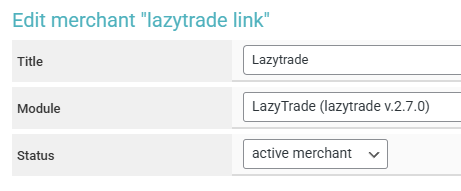
Select LazyTrade from the dropdown menu in the "**Module**" field, enter a name for the module, and click "**Save**."
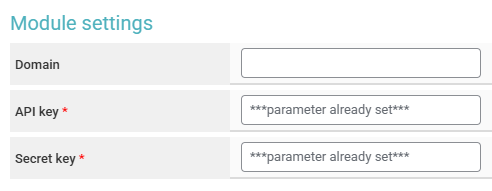
Fill in the required authorization fields.
**Domain** — leave this field blank.
**API key** — the API key provided to you earlier by a LazyTrade representative.
**Secret key** — the secret key provided to you earlier by a LazyTrade representative.
## Special Fields
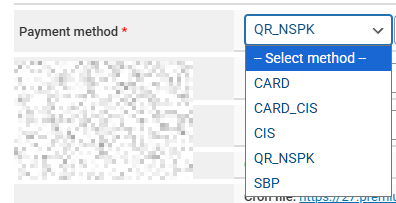
**Payment method** — select the required method for receiving funds from the customer:
* **(payment details) CARD** — issuing bank card details
* **(payment details) CARD\_CIS** — issuing card details for international transfers (cross-border)
* **(payment details) CIS** — issuing a phone number for international transfers (cross-border)
* **(link) QR\_NSPK** — issue a link to follow and pay via QR code on the page that opens (it takes up to 30-40 seconds to generate the link)
* **(payment details) SBP** — issue a phone number to receive funds via SBP
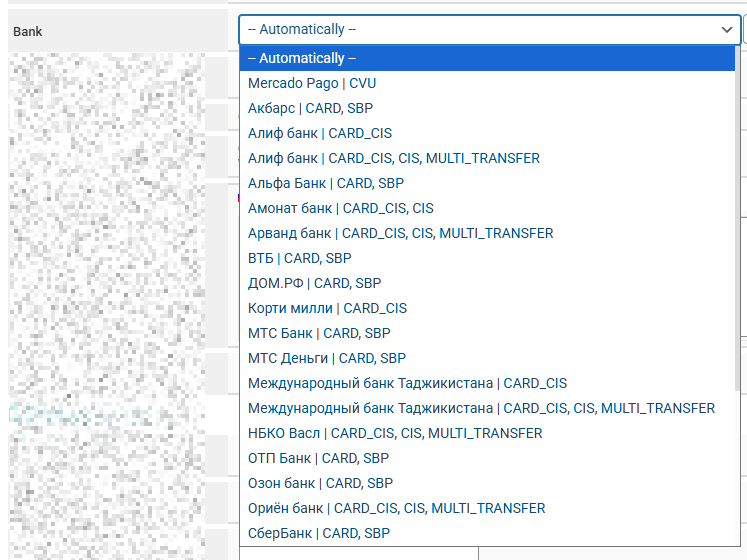
**Bank** — selection of the bank whose details will be provided in the application
**Individual time for deleting unpaid applications (minutes)** — the time that LazyTrade will wait for payment (default 60 minutes (when 0 is displayed in the field))
## Continuing the Setup
Next, proceed to configure the merchant by following the [general setup instructions](https://premium.gitbook.io/main/en/basic-settings/merchants-and-auto-payments/merchants/general-merchant-settings).